 Password Recovery
 Passper for PDF [PDF Password Release Software]
Passper for PDF Cracked Version Download [PDF Password Removal Software] Download link. The content is the same. Just select a frequently used cloud drive and copy it to your browser to download!
Baidu Cloud: https://pan.baidu.com/s/1DVmT9bOJu5SnUtP4seTmlw?pwd=322t Extraction Code: 322t
Xunlei Cloud: https://pan.xunlei.com/s/VO6t_7vUcCJ_kF4Tm5nhBO0TA1?pwd=t92h#
蓝奏云: https://xiaodongzi.lanzout.com/ijWwg2a3ghcb
获取解压密码请联系:www.mima8.cn Customer Service WeChat Request
Passper for PDF PC version is a PDF document password recovery software. This software is very suitable for users who encrypt PDF files but often forget their passwords. This software can help users quickly recover file passwords from dictionary attacks, brute force attacks, and intelligent attacks, and also allows users to easily edit and modify PDF files.
Passper for PDF Document Password Recovery Tool Delete Restrictions
1. Launch the software, and then select "Delete Restrictions" on the main interface.
2. After importing the encrypted PDF file, simply click the "Delete" button.
3. Remove restrictions on PDF files in less than 3 seconds.
The password is deleted within seconds.
Passper for PDF Document Password Recovery Tool Installation and Cracking Tutorial
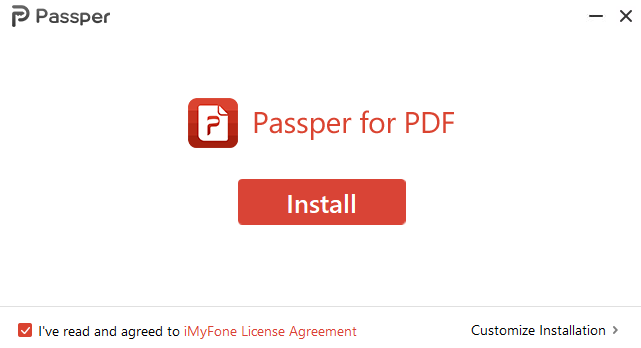
1. Download and extract from this site, double-click "Setup.exe" to run, and enter the installation wizard
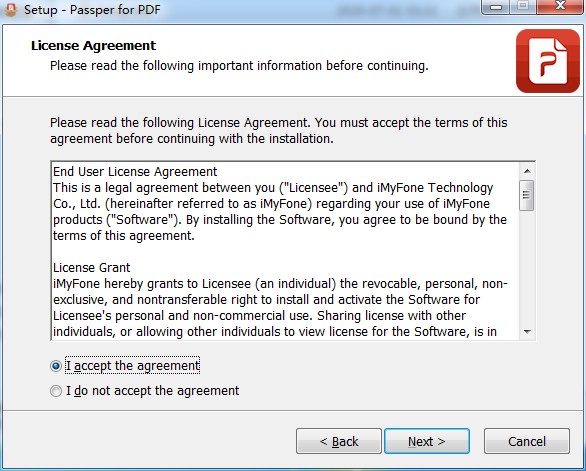
2. Select I own the license agreement
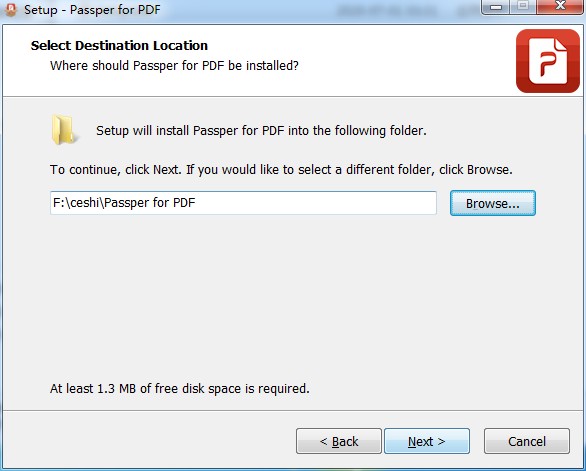
3. Select the installation directory
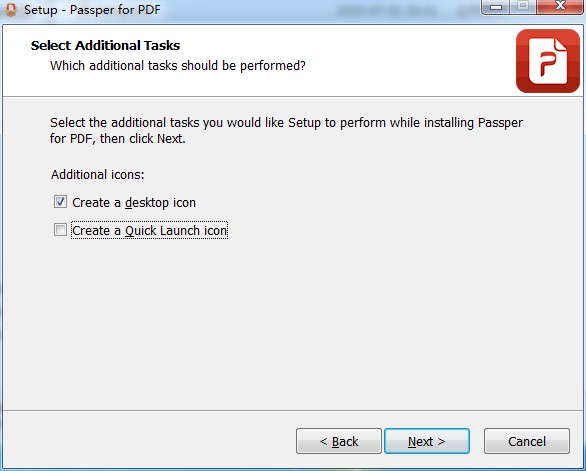
4. Select Add additional tasks to create a desktop shortcut, as shown in the image
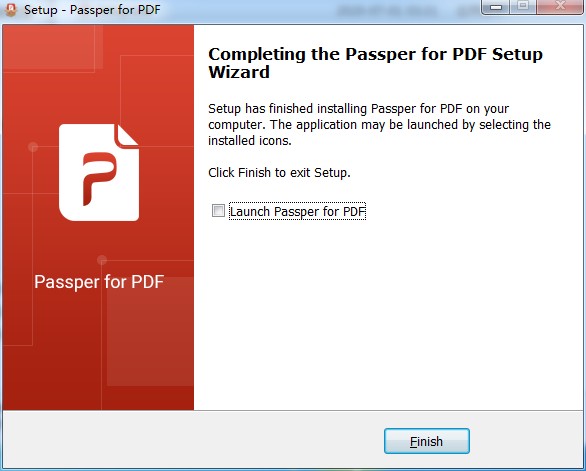
5. After the software installation is complete, do not run the software yet. Exit the wizard
Passper for PDF Green FAQ
1. What versions of PDF does it support?
Supports all versions of Adobe Acrobat or other PDF software.
2. How long does it take to decrypt my encrypted PDF?
There are several factors that can affect recovery speed, such as the attack mode you choose, the complexity of your password, and what information you know about it.
3. Can it run on MAC OS?
No. So far, only support Windows 10 / 8.1 / 8 / 7 / XP / Vista.
4.Is Passper for PDF safe to use?
We care about your privacy and take all necessary steps to ensure that any personal information you provide to us is protected.
5. Will my files remain on your server?
No. We will never send any files to our servers. In addition, we will not analyze, store, scan, copy, or otherwise perform any operations on your files.
6. What are the differences between the trial version and the full version?
The trial version cannot remove any passwords from a PDF document. The full version will recover all passwords and receive free lifetime guaranteed priority technical support.
![Passper for PDF [PDF Password Release Software]](/ueditor/php/upload/image/20240916/1726472884201400.JPG)
How to use Passper for PDF Green Edition
I. Find the password
1. Select the way you want to unlock the PDF
Download and install Passper for PDF on your computer. Then launch it after the installation is complete, and then select the "Recover Password" option.
2. Select the attack type
Add the password-protected PDF file to the application by clicking Add and browsing to the location of the PDF file.
Next, select the appropriate attack type. The software offers 4 different attack type options:
Dictionary Attack – The Dictionary Attack option is the best simple option for finding passwords. It is the default attack type for finding passwords. It uses the default dictionary to look up the password. You can even use a custom dictionary and add it to the software.
Combination Attack – The combination attack mode obtains a password by randomly combining a set of letters, numbers, and special characters of your choice.
Shield Attacks - This type of attack would be a good choice if you know some of the parameters of your password. You can configure some parameters to make it easier to find the password. You can use some parameters, such as the length of the password, the suffix, the suffix, and the number of characters. You can even configure the case of the letters.
The Brute Force Password Recovery option does not require any special settings or configuration from you. However, it will take longer to complete the recovery. Since the software needs to handle all password combinations, you need to be patient enough until it is complete.
3. Recover PDF password
After configuring all settings and selecting the attack type to recover the password, click "Recover". The password retrieval will begin. Depending on the type of attack you select, it will take some time to complete the password recovery process.
When the password is found, the software will detect the password. Then, you can decrypt the PDF file using the password.
II. Delete Restrictions
1. Launch the software, and then select "Delete Restrictions" on the main interface.
2. After importing the encrypted PDF file, simply click the "Delete" button.
3. Remove restrictions on PDF files in less than 3 seconds.
The password is deleted within seconds.
Passper for PDF Software Features
1. Combination Breaker: Dictionary Breaker will attempt combinations of all characters on the list until it finds your password. Passper provides a default dictionary.
2. Dictionary breakdown: Try selecting all character combinations to find the correct password.
3. Unmasking: If you know something about your password, using unmasking can help you recover it very quickly.
4. Brute force: Brute force will try all combinations of all characters until it finds your password. This method takes longer.